Install and open Role Rover
Install from the Chrome Web Store
- Open the official Role Rover listing in the Chrome Web Store.
- Select Add to Chrome and review Chrome's permission summary.
- Choose Add extension. Pin Role Rover from the Extensions menu if you want its icon visible.
Open the full application
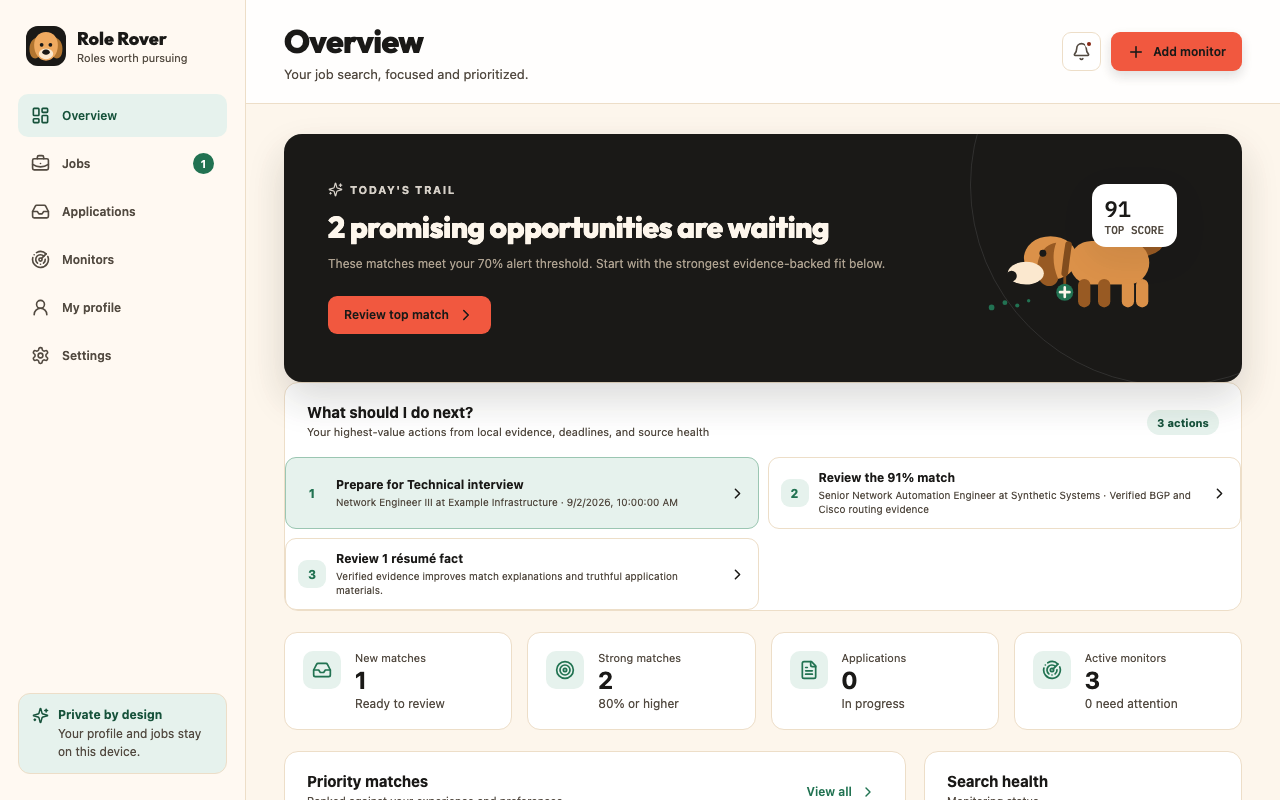
Select the Role Rover toolbar icon. The compact popup summarizes current activity. Choose Open Role Rover to open the full application in a browser tab. The sidebar provides Overview, Jobs, Applications, Monitors, My Profile, and Settings.
Import and verify your résumé
Import a DOCX or PDF
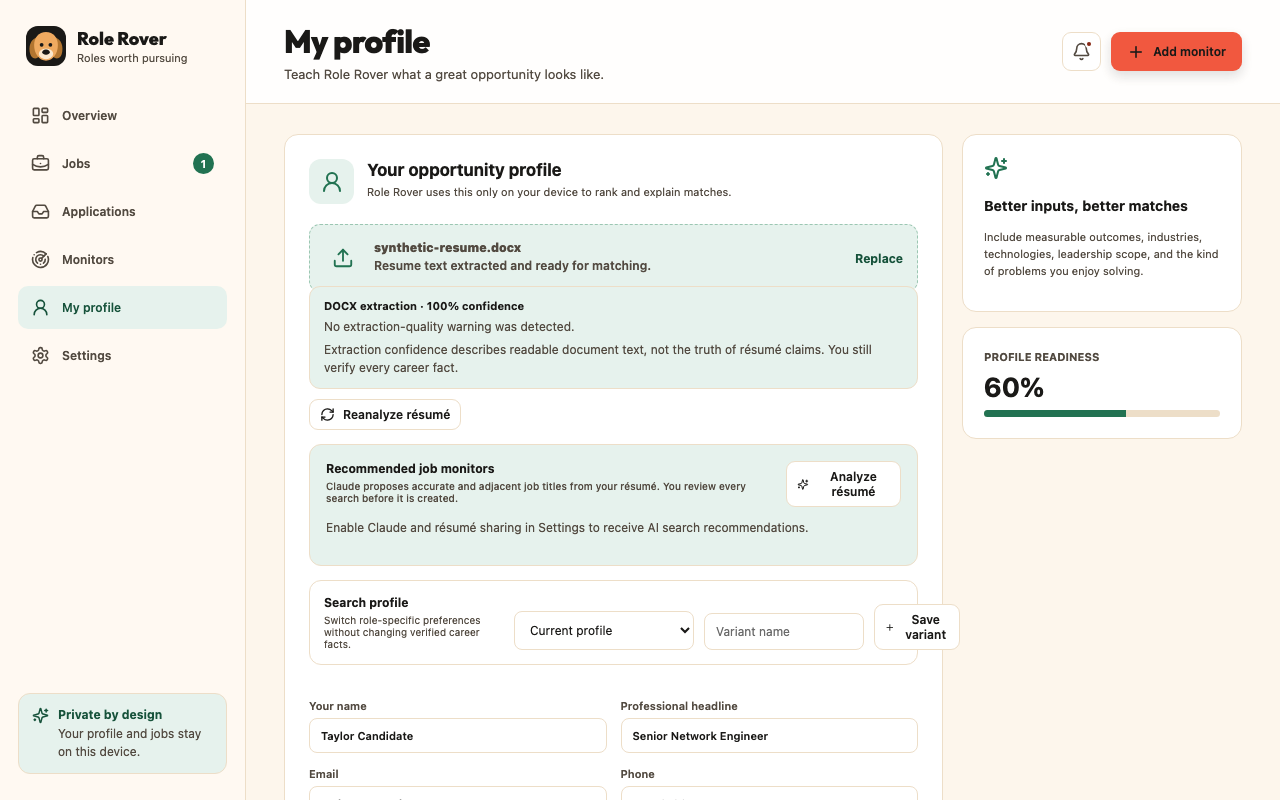
Open My Profile and choose a DOCX or text-based PDF. Files are limited to 25 MB; PDFs are limited to 100 pages and one million extracted characters. Image-only PDFs fail because they do not contain enough readable text.
Review identity and contact information
Compare the extracted name, email, phone, city, region, address, postal code, country, LinkedIn URL, and portfolio URL with the source document. Correct errors before saving. These fields can support selected application fields but are excluded from qualification-oriented AI operations.
Reanalyze a résumé
Use Reanalyze résumé after replacing or correcting the source text. Reanalysis can fill missing extracted data while preserving deliberate manual edits and prior verification choices. Extraction confidence measures readable structure, not factual truth.
Verify facts
Each extracted experience, achievement, skill, education, certification, preference, identity, or contact fact begins as a suggestion. Review one fact and select Verify only when accurate. Verify all is appropriate only after reviewing the full list; it is not an accuracy check.
Save the profile
Choose Save profile and wait for the visible saved confirmation. A saved message confirms local persistence, not external synchronization. Changes to profile facts or reusable answers rotate the local profile revision used by safety checks.
Create search-profile variants
Create variants for distinct searches—for example, infrastructure leadership and hands-on network engineering. Each variant can retain its own titles and preferences. Select the active profile before creating or running related monitors.
Review AI-recommended titles
If Claude monitor recommendations are configured and you separately consent to raw résumé sharing, review each proposed title before adding it. Recommendations are ideas, not verified qualifications, and can be edited or ignored.
Create a job monitor
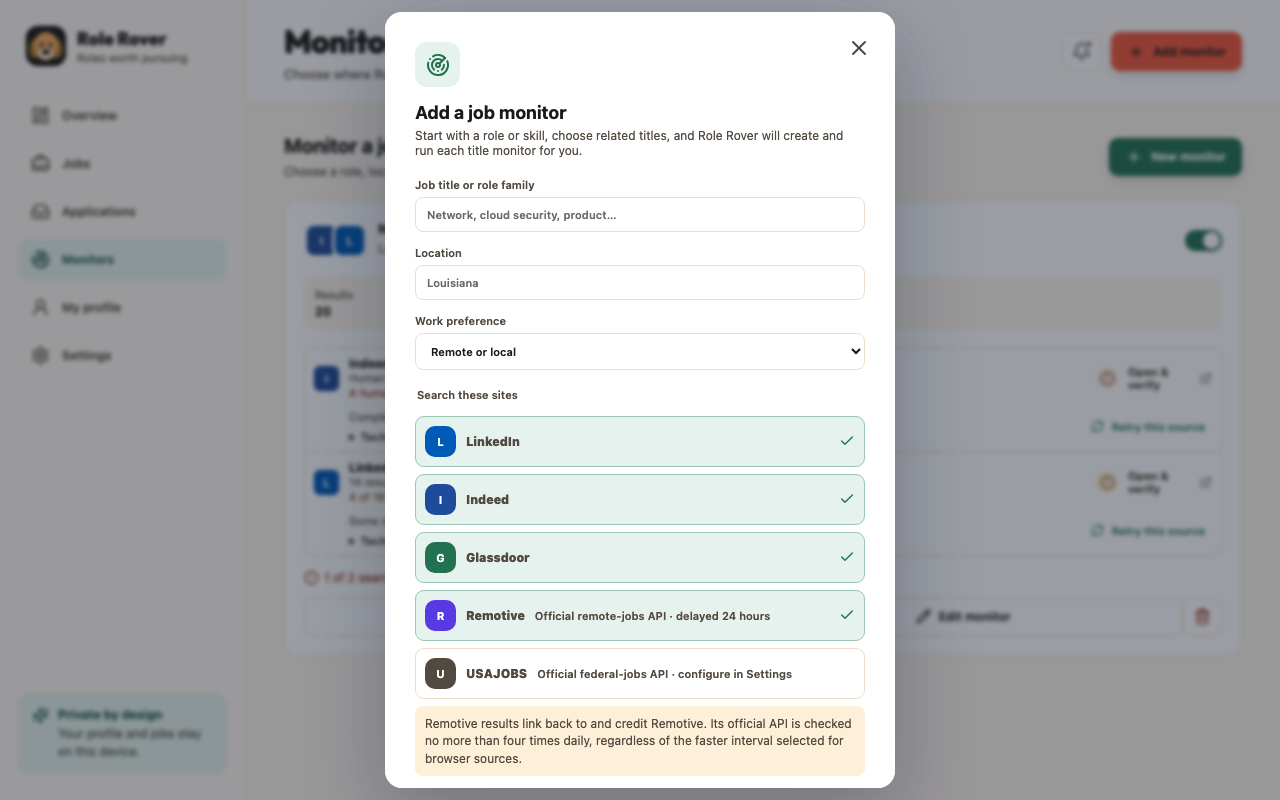
- Open Monitors and choose New monitor.
- Enter a primary title and select any useful related titles. Multiple titles broaden the query, so remove weak synonyms.
- Select supported sources. Each source has its own access and data boundary.
- Choose a location scope: local, remote, or combined. Add a city/region when local or combined is selected.
- Review the summary and save the monitor.
A monitor is a repeatable search definition, not a guarantee of complete market coverage. Broad combinations can produce partial snapshots or noisy results.
Run, authenticate, and recover sources
Open and authenticate sources
Use the monitor's source action to open a job site. Sign in directly with the site and complete any human-verification step yourself. Role Rover does not read job-site passwords, cookies, or CAPTCHA solutions and does not bypass access controls.
Run and retry
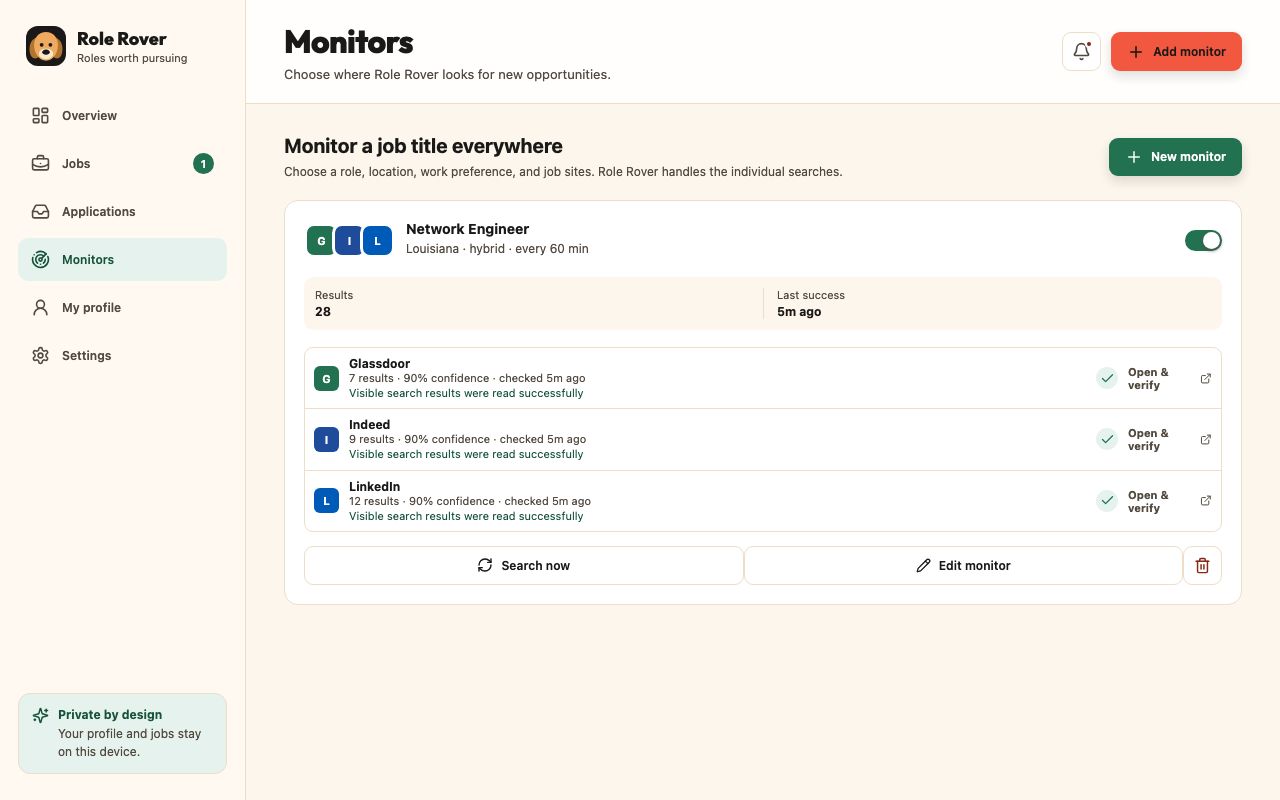
Select Run monitor. Monitoring can run only while the browser and device are available. If the computer sleeps or Chrome closes, scheduled work cannot execute. After resolving a source problem, return to the monitor and retry.
Understand source states
- Ready: the latest bounded search completed normally.
- Stale: the available result is older than the expected freshness window.
- Partial: some collection completed, but the result is incomplete or capped.
- Blocked: access, parsing, or network behavior prevented useful collection.
- Verification required: the source needs your direct sign-in or human action.
Understand zero results
A zero-result state means that this exact completed search returned no usable listings. It does not prove that no role exists, that every source was searched, or that the source exposes all listings. Check title spelling, location, remote scope, source health, and whether a narrower or broader related title is appropriate.
Compare opportunities and understand match evidence
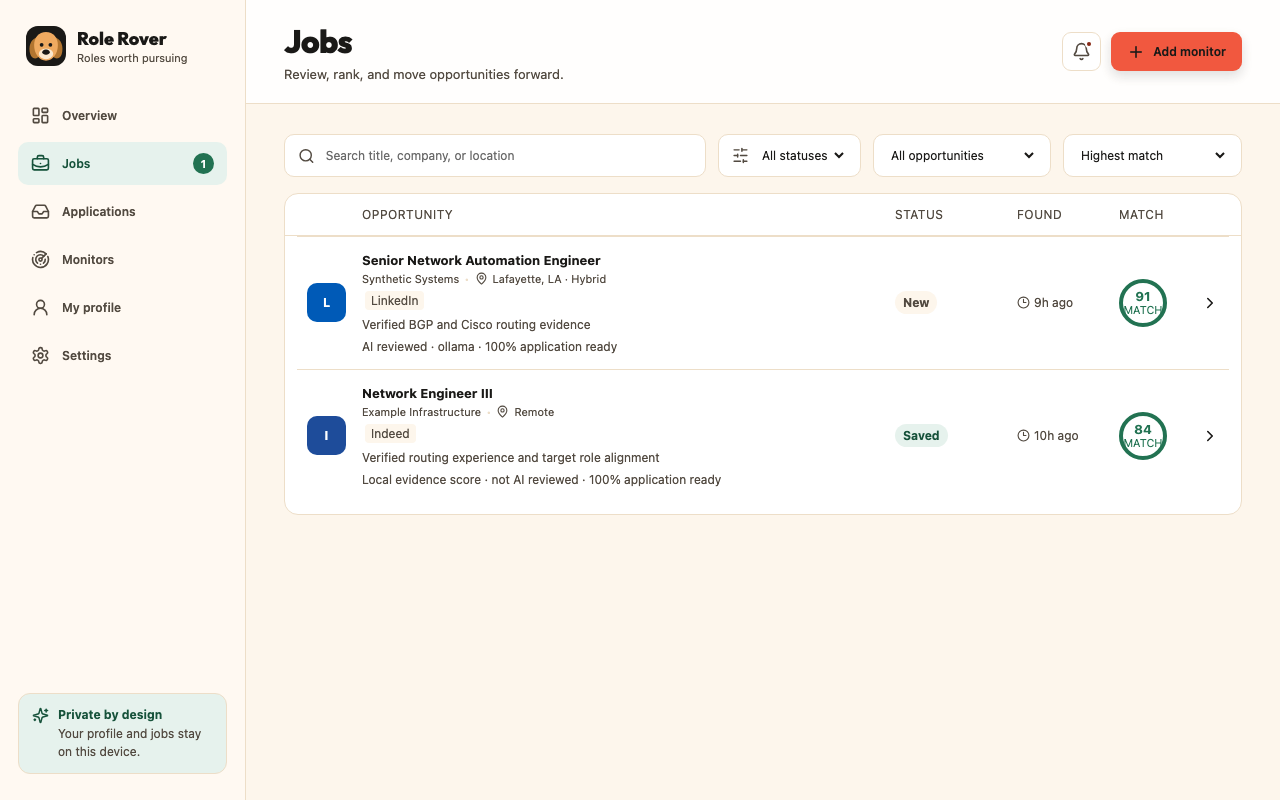
Review jobs sorted by match
Open Jobs and choose match sorting. A high score is a prioritization signal, not a prediction of hiring success. Open a job to inspect the original source, captured description, collection confidence, and analysis time.
Read explanations, evidence, and gaps
The explanation distinguishes verified supporting facts, requirements that appear missing, gaps that need review, and information the posting did not provide. Missing information remains unknown; Role Rover should not silently convert it into a negative fact.
Add a job from a saved email or URL
Choose Add opportunity on Jobs. Select up to ten saved RTF or plain-text job emails, or paste one specific HTTPS posting URL. Email parsing happens on this device and finds at most 25 candidate jobs per email. Review and edit every title, company, location, salary, description, and destination; uncheck anything you do not want before choosing Add selected jobs.
Role Rover discards known social, unsubscribe, preference, and delivery-tracking links and removes common campaign parameters. A recruiter email without a trustworthy posting link can still be saved as a partial opportunity when its job details are present. The original email, sender and recipient headers, and unrelated message text are not retained. Exact repeated jobs are consolidated and every saved job enters normal local ranking and tracking.
Capture or paste a missing description
Open the original job and use Capture full description when the saved text is partial. After a complete description is saved, Refresh description remains available so you can replace text that is stale, incomplete, or attached to the wrong listing. If capture is unsupported or blocked, paste the description manually from a source you are allowed to use. Confirm that the description belongs to the selected job before saving. Every saved change reruns deterministic local ranking.
Review requirement evidence
Requirement evidence compares the posting with current verified facts. It may connect directly relevant facts without requiring an exact whole-sentence match, but it must not invent experience or treat an unsupported inference as verified. Use the Add supporting fact action when you can supply truthful direct experience. You can select one, several, or all meaningful unanswered qualifications, write evidence for each, and add them as suggested facts for review. Approving a suggested fact makes it a verified fact in My profile and refreshes requirement evidence and local scoring. Employer policies, compensation notices, and application instructions are not treated as missing personal qualifications. A target-title mismatch is shown as context and does not reduce the local fit score.
Run AI analysis
Choose AI analysis only when a provider reports ready. Role Rover sends the bounded data disclosed for that operation, validates the response, and records method, timing, and confidence. If AI fails, deterministic scoring remains available. Use Run analysis again after fixing the description or verified facts. Provider limits still apply, and a failed or limited AI run does not erase the saved description.
Inspect AI Activity
Open AI Activity from Settings or the relevant activity link. Review local request and response records, provider, operation, outcome, and exclusions. Delete the ledger when you no longer need it. Do not share raw activity without reviewing it for sensitive job or résumé context.
Configure optional AI and job sources
Chrome built-in AI
No API key is required. Role Rover uses Chrome's Prompt API only when the browser exposes it and reports the browser-managed model ready. “Download required” and “downloading” are not ready states. Bounded job context and verified qualification facts are processed by the local browser model.
Ollama
Install Ollama separately, start the local service, download a compatible model, then choose and test it in Settings. Role Rover connects to localhost, applies time and size limits, and excludes raw résumé and identity/contact details from qualification analysis. A local model can still be inaccurate.
Secure companion
Download the native companion only from the trusted Role Rover distribution. Role Rover Settings detects macOS, Windows, or Linux and links to the matching current download. On macOS, open the signed PKG and approve the standard Installer. On Windows, extract the ZIP and double-click install-role-rover.cmd. On Linux, extract the tarball and run ./install-role-rover.sh.
Fully restart the browser, return to Settings, enable the companion, approve Chrome's optional native-messaging permission, and refresh the connection. The companion can use an authenticated Claude CLI and protects supported API credentials with Apple Keychain, Windows Credential Locker, or Linux Secret Service. Qualification analysis sends bounded public job context and verified qualification facts; raw résumé monitor recommendations require separate consent.
Anthropic API behavior
Paste or replace an Anthropic API key in Settings after installing the companion. Anthropic receives the data disclosed for the selected operation, and provider-side handling is governed by Anthropic and your account. Remove the saved key or disable the provider when it is not needed.
USAJOBS
Request a personal USAJOBS API key and use the same registered email in Settings. Select Save and test. The companion protects the credential in the operating-system vault; it is excluded from backups and diagnostics. Searches send title, location, remote filter, registered email, and key to the official Search API. Disconnect removes the credential and session header rule.
Apify
Apify is an optional fallback for unresolved LinkedIn and Indeed descriptions. Supply your own token, install the secure companion, grant the exact API permission, and test the connection. Before every potentially billable run, inspect and confirm the source URLs and cost warning. A combined run sends at most 25 canonical public posting URLs; it may request public company details, a visible job poster, and published emails. It never sends your résumé, profile, cookies, job-site credentials, CAPTCHA material, notes, or application history. Company enrichment can add cost. Disconnect removes the token and permission.
Review duplicates and share a job
Duplicates
Role Rover can consolidate exact duplicates when reliable source evidence identifies the same opportunity. Possible duplicates remain visible with the evidence that caused the warning. Compare company, title, canonical source ID, location, and destination before deciding which record to retain.
Share by email
Choose Share, enter and review the recipient and job summary, then open the draft in your configured mail application. Role Rover does not access the mailbox or send the message. Inspect the final recipients, subject, body, and links in the mail application before sending.
Track applications, contacts, and outcomes
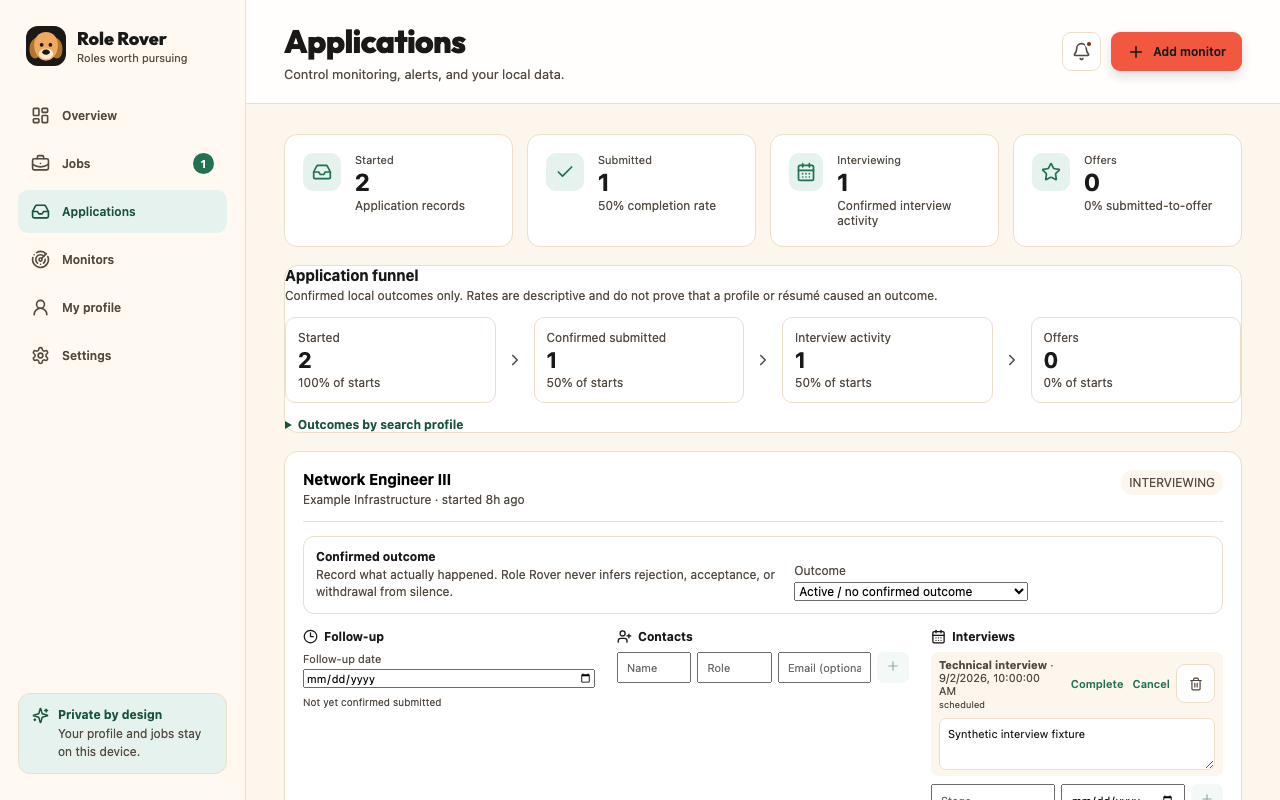
Move a job into the application pipeline when you begin pursuing it. Update the stage as work progresses: saved, applying, applied, interviewing, offer, or rejected. Recording a submission is a user-entered history event; Role Rover does not infer employer receipt.
Add follow-up dates, recruiter or hiring-team contacts, interview schedules and outcomes, and offer details. Complete or cancel interviews when their status changes. Reopening an existing application resumes its history instead of replacing it.
Create and approve an Application Pack
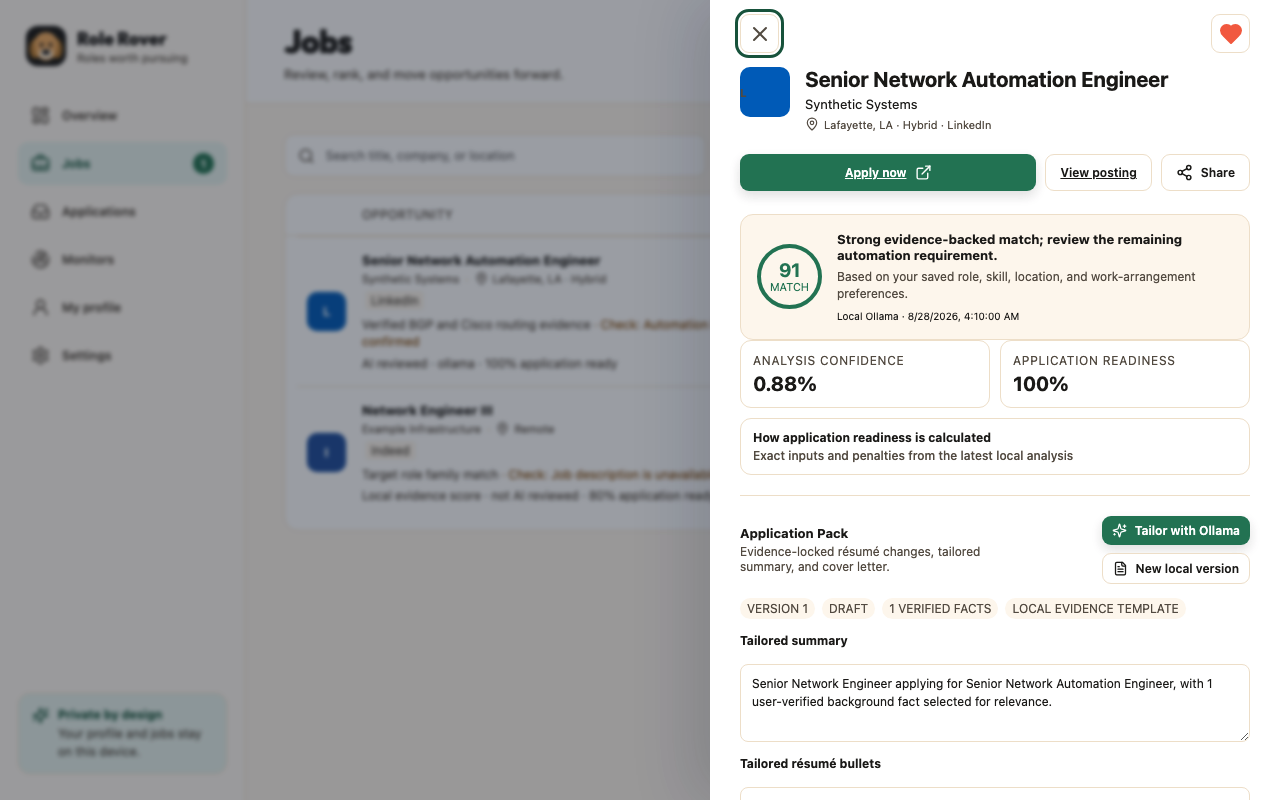
- Open a tracked job with a usable description.
- Choose Create Application Pack and select local generation or an available configured provider.
- Review the tailored summary, résumé bullets, cover letter, selected fact evidence, and generation label.
- Edit incomplete or misleading language. Verify better source facts instead of approving unsupported claims.
- Approve only the exact reviewed version. Any material edit creates a new draft version.
- Download the approved materials and inspect the resulting files before use.
Claude and Ollama may select only current verified fact IDs for qualification material. Role Rover constructs factual qualification statements from the exact saved facts. Every pack remains a draft until you approve it.
Review and fill supported fields
Manage reusable verified answers
In My Profile, create answers for recurring non-sensitive questions. Keep each answer in draft until reviewed and verified. Similar wording is advisory only; approve an alias explicitly before reuse. Protected questions remain Never memorize.
Review a supported application step
Open the application through Role Rover, then inspect the current step. Role Rover inventories visible labels, control types, required states, choices, validation signals, attachments, URL, and final control. Unsupported, ambiguous, sensitive, or risky contexts remain blocked.
Fill selected fields
Review each proposed value and its source. Select only the fields you want, then choose the fill action. Role Rover re-reads custom controls and refuses to overwrite a value that changed after review. File selection remains manual.
Use notifications and Notification Center
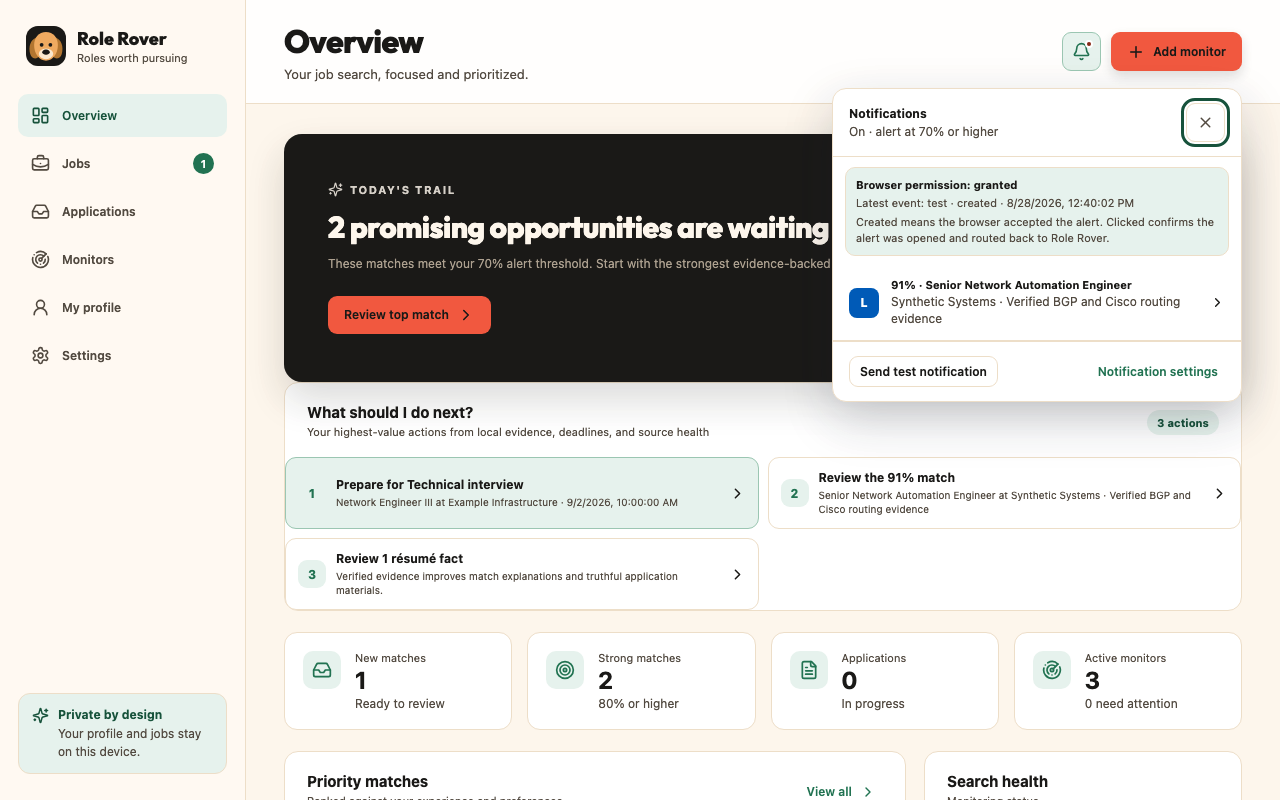
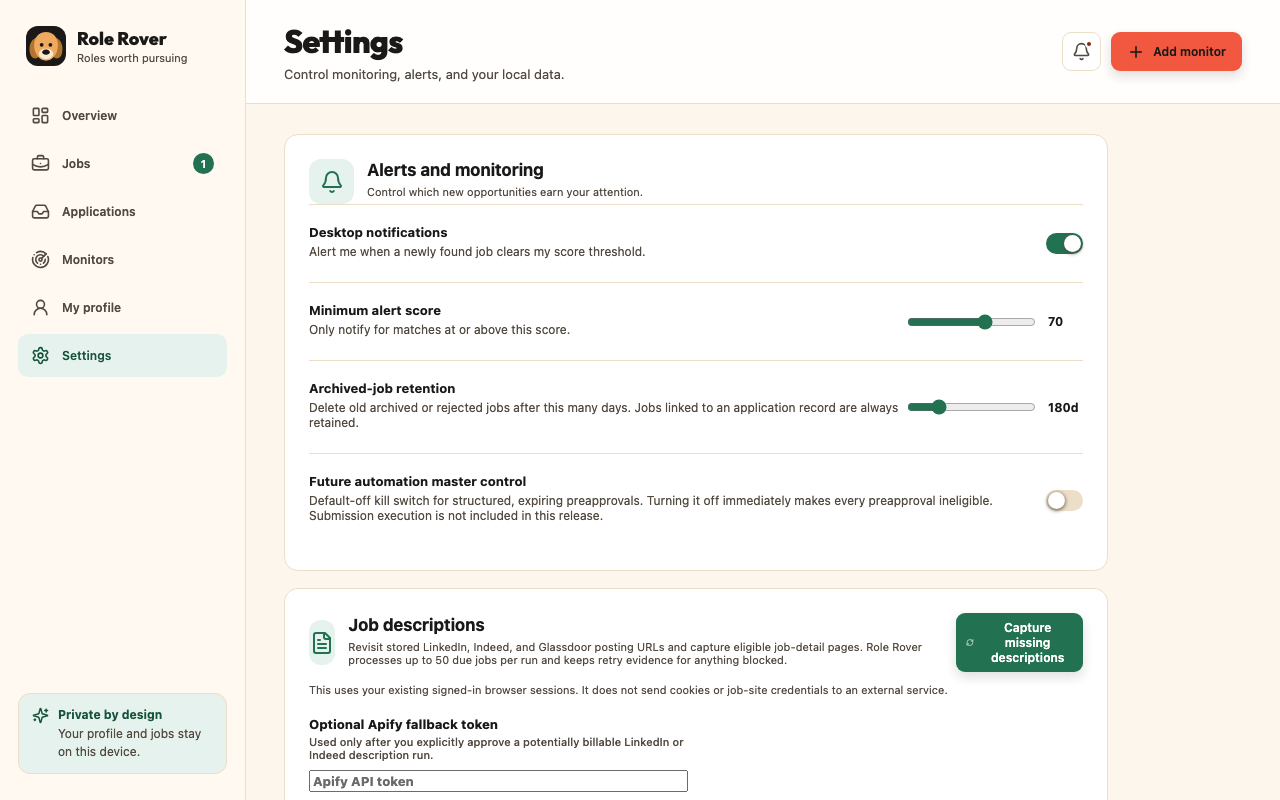
Grant Chrome notification permission if you want alerts. Use the Settings test control, then open Notification Center to inspect created, failed, or clicked evidence. “Created” means Chrome accepted the notification; operating-system focus or notification settings can still prevent visible presentation. “Clicked” confirms the alert was opened and routed back to Role Rover.
Back up, restore, diagnose, and delete
Create an encrypted backup
Open Settings, leave password protection enabled, enter and confirm a strong password, then export. The `.jobradar` filename is a retained technical format identifier. Encryption uses AES-256-GCM with PBKDF2-SHA-256. The password is never stored or recoverable.
Plain JSON
Disable protection only when interoperability requires readable JSON. A warning explains the risk. Anyone who obtains the file can read its contents.
Restore
Select the backup, enter its password if needed, and review the confirmation. Role Rover validates structure before replacing local data. Credentials for USAJOBS and Apify are excluded and must be reconfigured.
Export sanitized diagnostics
Use the Settings export to create a schema-versioned report of aggregate source, description, AI, notification, and ATS-inspection health. It excludes profile and résumé text, contact values, job content and URLs, application materials, AI payloads, model names, cookies, credentials, API keys, and CAPTCHA material. Review it before sharing.
Delete local data
Use Delete all data, read the warning, and confirm only when you intend to remove Role Rover's browser-managed records. Downloaded backup or diagnostic files remain on your computer and must be managed separately.
When something changes or fails
Source changes or blocked pages
Open the source, complete sign-in or verification, and retry. If health remains blocked or parsing-related, export sanitized diagnostics and report the source, installed version, expected behavior, and safe steps.
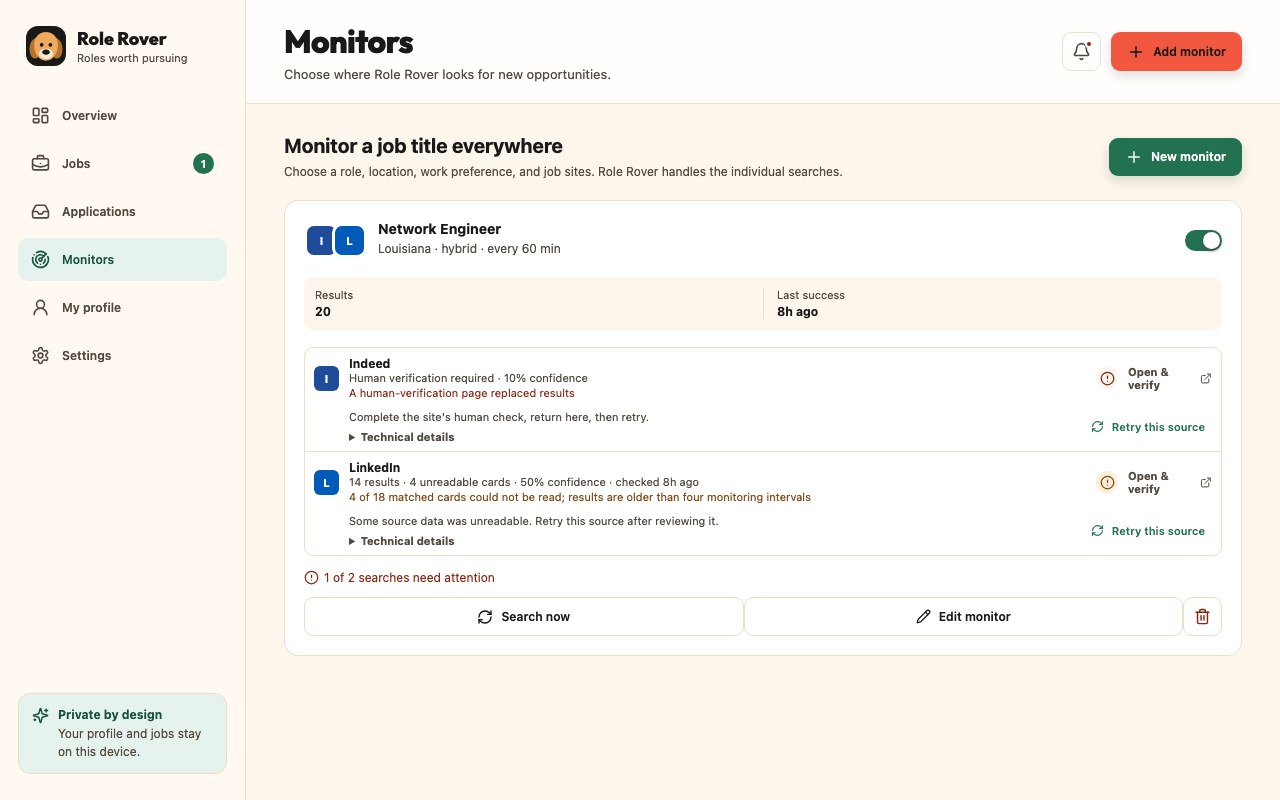
These example recovery states can appear when a third-party site requires sign-in or human verification, exposes only part of a virtualized results page, retains a stale session, or changes its page structure. Role Rover reports the limitation instead of treating the run as complete. Resolve the condition directly on the source, then retry.
Missing permissions
Open Chrome's extension details and review Role Rover site access. Grant only the access needed for the workflow. Reopen the application page through Role Rover after changing permissions.
AI failures
Check provider status, model readiness, local service availability, consent, and AI Activity. Timeouts and invalid model output fall back safely; retry only after the underlying condition is understood.
Missing descriptions
Open the exact job posting and choose Capture full description or Refresh description. If browser capture is unavailable, paste the description manually and verify it belongs to the job. A source can expose only an introductory excerpt, so inspect the saved text before relying on its score. Apify fallback is optional, user-funded, and requires per-run confirmation.
Companion or saved-provider problems
Install the current Companion 1.0.9 package, fully quit and reopen Chrome, Vivaldi, or another supported Chromium browser, then refresh the connection in Settings. A saved API secret is intentionally not displayed again; the status says it is saved in the operating-system vault. Use Save and test to retest it, or disconnect and enter a replacement.
A notification was created but no banner appeared
Check Role Rover's notification setting, Chrome's notification permission, and macOS System Settings for the browser you are actually using. Notification Center records browser creation, failure, and click evidence. A created record proves Chrome accepted the request, not that macOS displayed a banner.
Résumé problems
Use a simpler DOCX or a text-based PDF. Remove unusual columns, floating text, or image-only content. Compare every extracted field and fact with the source before verification.
For more help, see Role Rover Support or email support@getrolerover.com without secrets or unredacted personal material.
Uninstall and understand the data consequence
- Export and verify an encrypted backup if you may want the data later.
- Open Chrome's Extensions page and choose Remove for Role Rover.
- Confirm removal in Chrome.
Chrome removes browser-managed extension storage according to its behavior. Role Rover cannot restore it without a backup. Downloaded backups, exported materials, and diagnostics remain on your computer after uninstall and must be deleted separately if no longer needed.
Remove the optional companion
Removing the extension does not remove the separately installed companion. On macOS, run sudo "/Library/Application Support/Role Rover/uninstall-role-rover" in Terminal. On Windows, double-click uninstall-role-rover.cmd from the extracted companion package. On Linux, run ./uninstall-role-rover.sh. Restart the browser afterward.